
UPDATE: Patch Tuesday seems to have fixed the original BSOD (that it caused), which leads to a BSOD if the below “fix” was in place. To put things back in working order, its a simple matter of walking through the steps below again and moving the applemtp.sys driver and associated files back where they belong. Very mysterious.
UPDATE 2: If I had to bet, I’d bet that either MS11-012 or MS11-013 were the culprits here. Both deal with kernel mode driver interaction with user mode. Why this situation played out the way it did is very peculiar though.
Has a routine Windows Update on your BootCamp enabled MacBook Air left you facing this?
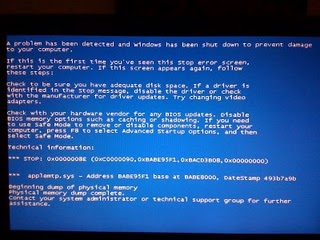
Unpleasant to say the least! It’s a tricky problem and seems to be related to some inherent weirdness in the Apple multi-touch pointer driver that goes way back (there is Google history of this problem going back quite a while).
I’m not sure what set of conditions causes it yet, but it is hard to fix. Safe mode won’t work, nor will safe mode command prompt only. Restore last known good and System Restore both came up empty. Last known good tripped a BSOD as well (which is quite strange) and System Restore outright failed despite a restore point being available.
So how does one fix this annoying error? I took a bit of a sledge hammer approach… First, boot into BootCamp and select “Startup Repair”:
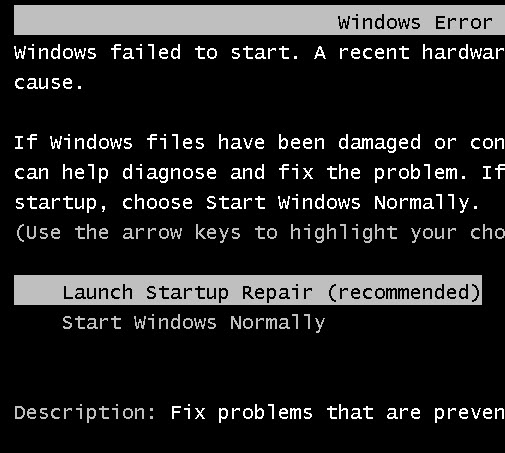
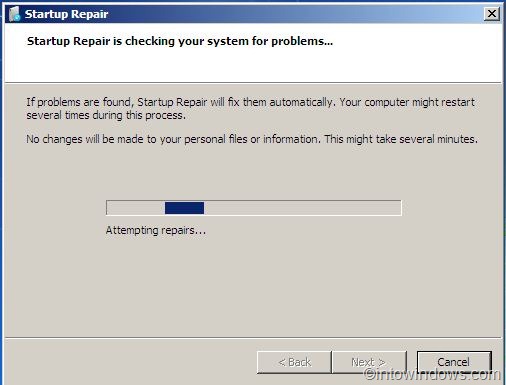
When startup repair launches, it will automatically attempt repairs. It won’t work, but this initial stage can’t be bypassed:
Once it fails, you will get the option to try advanced options:
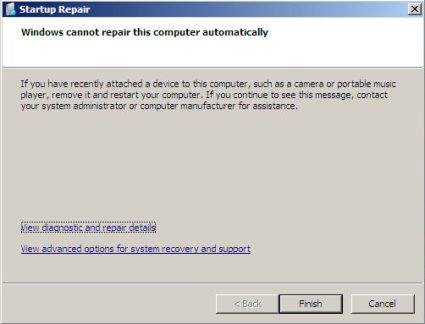
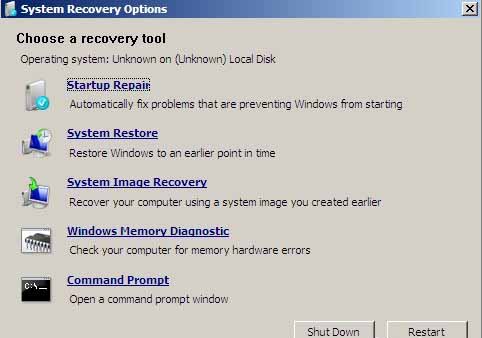
From the advanced options, the one we’re going to need is Command Prompt:
From the command prompt, change to the C: drive and change directory to C:\Windows\System32\DriverStore\FileRepository\applemtp.inf_x86_neutral_35d22cf8
bad9797d>
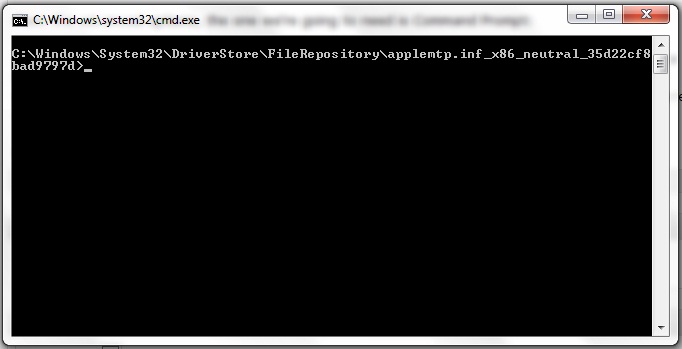
Create a directory called “tmp” by typing “md tmp” and move all of the files into it by typing “move *.* tmp”
Next change to C:\Windows\System32\Drivers and rename applemtp.sys to applemtp.bad and reboot
This is a bit of a sledgehammer fix that effectively makes Windows forget about the MTP driver altogether, but the system will now boot. Device Manager will show a device error:

Once I figure out what is going on with the applemtp driver, I will manually update to clear the error and post an updated entry on the blog.
 Complaints Incorporated...